
How to Multistream Zoom Live Meetings & Webinars in 2025

Zoom Live is great if you’re fine talking to just one corner of the internet. But in 2025, that’s like giving a speech in an empty theater while the crowd waits outside in the plaza.

Yes, I know that now it lets you live stream Zoom meetings to multiple destinations, but it is still up to only three at once. Using its Live Streaming app, you can go live to YouTube, Facebook, Twitch, and any custom RTMP destination with your Zoom stream key. Helpful, but still limited if you need LinkedIn, your website, or a full-on live video distribution workflow.

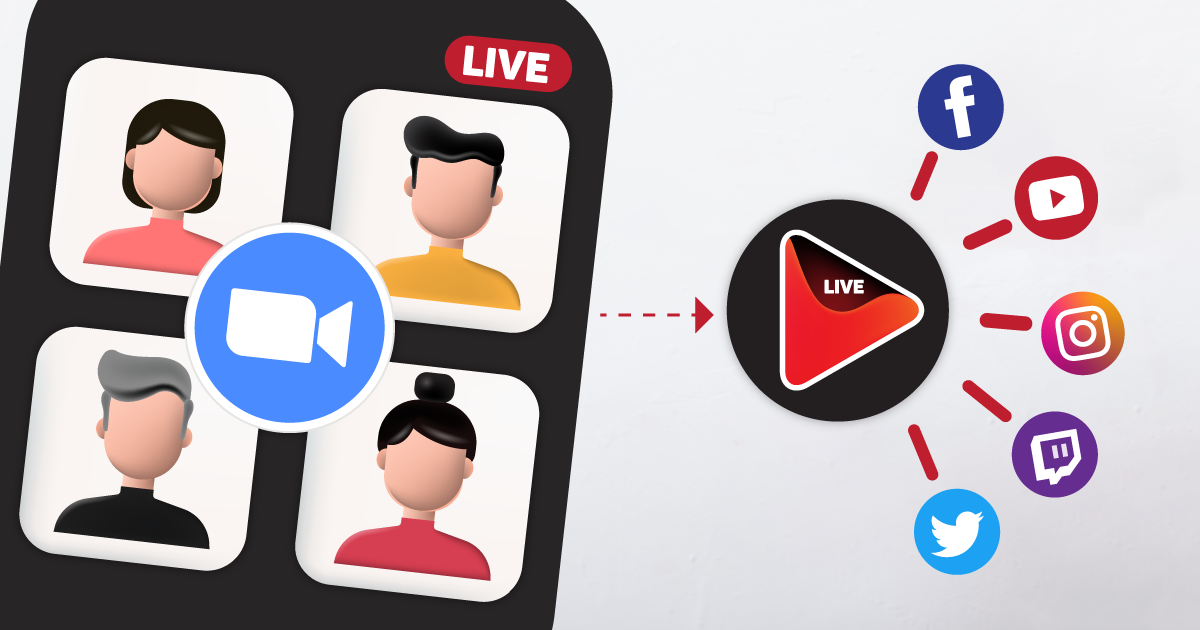
The fix isn’t complicated: run your meeting once, and let the right tool push it everywhere at the same time. OneStream Live takes the feed you’re already sending and turns it into a broadcast for all your people, wherever they’re watching. Let’s find out more!

In this Article:
OneStreamLive-Black-Friday-Deal
Key Takeaways:
  • Zoom live stream to Facebook and YouTube simultaneously using the Live Streaming app or OneStream Live for 45+ destinations.
  • Zoom multi stream: enable Custom Live Streaming, grab your Zoom stream key, connect platforms in OneStream Live.
  • Record your Zoom meeting live stream for VOD, captions, or replays.
  • Boost engagement with polls, Q&A, and branded overlays on every broadcast platform.

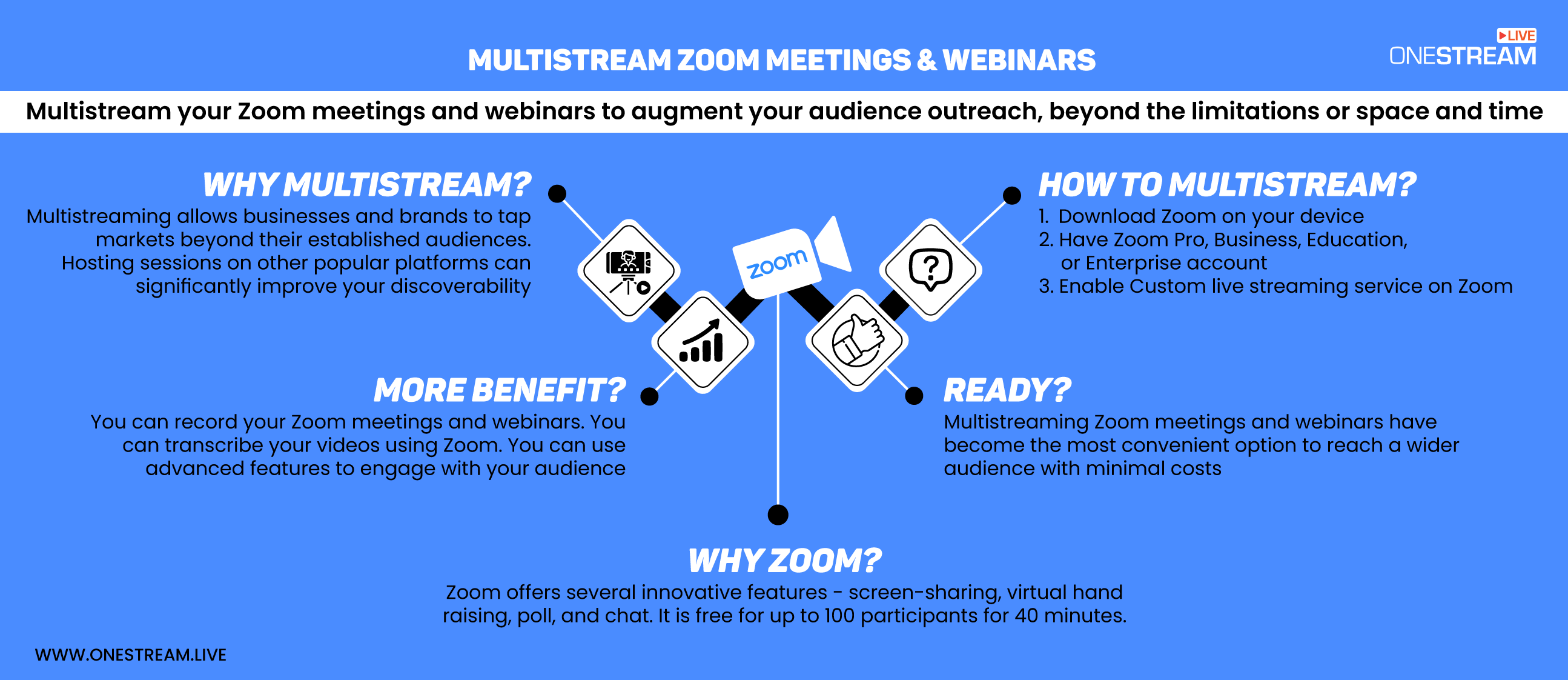
Why Multistream Zoom Meetings and Webinars?

If you host a Zoom meeting live stream and only send it to Facebook, you’re missing your YouTube subscribers. Stream only to YouTube, and you leave your LinkedIn network out.

Even Zoom’s live streaming app’s native options let you go live to a maximum of three destinations at once. Zoom multistreaming with OneStream Live changes that.

You can run your webinar live stream once, and it reaches everyone. Stream Zoom to Facebook, YouTube, LinkedIn, Telegram, or even embed it on your website with OneStream Live’s broadcast platform tools. 

Here’s why it matters:

  • Maximize reach instantly – Live stream Zoom to Facebook, YouTube, LinkedIn, Telegram, and more, all from a single session.
  • Engage multiple audiences – Different platforms attract different demographics and Zoom multistream lets you speak to all at once.
  • Save serious time – Skip rehosting your Zoom meeting live stream on each platform. Go live once, everywhere.
  • Fail-safe streaming – If Facebook cuts out, your webinar live stream continues on YouTube, LinkedIn, or any broadcast platform you’ve connected.
  • Use algorithms – Each network promotes live content differently and multistreaming lets you tap all of them in real time.
  • Centralized interaction – OneStream Live’s unified chat pulls comments from multiple platforms into one view for smoother moderation.
  • Professional presentation – Add branded overlays, CTAs, and custom visuals to every Zoom broadcast.
  • Destination Flexibility – Stream not just to social platforms but also to your website, webcast streaming services, and private portals using Zoom stream key.
  • Extended content life – Record your live streaming broadcasting for replays, highlights, and future campaigns.
  • Event scalability – Perfect for conferences, summits, product launches, and hybrid events where audiences watch from everywhere.
Multistream on 45+ social platforms & the web

How to Set Up Zoom Live with OneStream Live for Multistreaming (Quick Steps)

Multistreaming is OneStream Live’s inherent and most widely acknowledged feature. The cloud-based software enables you to multistream your Zoom meetings and webinars on 45+ platforms and embed Zoom streaming on your website.

It’s a simple, let’s get started.

Prerequisites for Zoom Live Streaming

  • Download Zoom on your device.
  • You must have Zoom Pro, Business, Education, or Enterprise account.
  • Custom Live Streaming Service must be enabled on Zoom.

Step 1: Enable Custom Live Streaming in Zoom

Before you can send your Zoom stream anywhere, you need to allow custom streaming.

  • Sign in to your Zoom account (Must be Pro, Business, Education, or higher).
  • Click Account Management > Account Settings.
  • Scroll down and right at the end, under the In Meeting (Advanced) section, click the toggle button next to Allow live streaming meetings.
  • Click the Custom Live Streaming Service checkbox to enable it.

Step 2: Sending Live Stream from Zoom to OneStream Live

  1. Sign in to the Zoom web portal and click Meetings.
  1. Click Schedule a Meeting.

zoom live streaming

  1. Add meeting topic and other details and click on Save.

zoom live streaming

  1. Your stream is scheduled. Click on Personal Room

zoom live streaming

  1. Click on Live Streaming and then click on Edit under Custom Streaming Service Configuration section.

  1. Copy Server URL and Stream Key from OneStream Dashboard and paste it here.

  1. Go to OneStream Dashboard and copy the Server URL and Stream key and paste it in Custom Configure Streaming Service.

  1. Open the installed Zoom application on your computer and start your meeting for which live streaming settings are done.
  1. At the bottom click More and select Live on Custom Live Streaming Service.

  1. Zoom will start sending stream to OneStream Live.

zoom live streaming

  1. Your stream will appear on your dashboard. You can multicast your RTMP Encoder live streaming by selecting social accounts that are already connected to OneStream Live.

How to Multistream Using Zoom's Live Streaming App

Zoom’s built-in Live Streaming app gives hosts the ability to send a meeting or webinar to up to three platforms at the same time: Facebook, YouTube, Twitch, or any custom RTMP destination. It’s not as flexible as using a dedicated Zoom multistream setup with OneStream Live, but it’s a quick way to reach a bigger audience without extra tools.

Step 1: Install the Live Streaming App

  • Open the Zoom App Marketplace, search for “Live Streaming app,” and click Add.
  • Approve the requested permissions, and the app will appear in the Apps tab of your Zoom desktop client.

Step 2: Connect Your Platforms Before You Go Live

  • In the Zoom desktop app, open the Live Streaming app from the Apps tab.
  • Click Add Channel, then sign into Facebook, YouTube, or Twitch.
  • For other platforms (LinkedIn, custom broadcast platforms, OneStream Live, etc.), choose Custom and enter your stream key, RTMP URL, and stream page link.
  • Add titles, descriptions, and adjust stream privacy or resolution in the gear menu.

Step 3: Start Streaming in a Meeting or Webinar

  • As the host, start your meeting or webinar live stream.
  • Open the Live Streaming app from the meeting controls.
  • Turn on the toggles next to the services you want to stream to (maximum three at once).
  • Make any final adjustments, then click Start Streaming.

Step 4: Manage Streams and Chat

  • Once live, you’ll see a dashboard showing stream health, viewer counts, and chats.
  • You can moderate chat for Facebook, YouTube, and Twitch directly inside Zoom by deleting messages, banning users, or assigning moderators.
  • For custom RTMP Zoom streams, chat moderation must be done on the receiving platform.
  • When you’re done, click Stop Streaming to end the broadcast but keep the meeting running, or end the meeting/webinar to stop both.

Important Notice: The Zoom Live Streaming app is excellent for fast, built-in multistreaming, but it’s limited to three destinations and only supports native moderation for select platforms. If you want to live stream Zoom to Facebook and YouTube simultaneously and add LinkedIn, Telegram, or your own website, OneStream Live is the more powerful option.

Other Benefits of Using Zoom for Multistreaming

While Zoom is best known for its reach, there are several lesser-talked-about advantages to using it for your Zoom multistream setup:

  • You can record your meetings and webinars – Both free and paid users can record a Zoom meeting live stream locally, while paid plans allow cloud recording. These files can be repurposed as VOD, rebroadcast via live streaming broadcasting platforms like OneStream Live, or clipped for social content.
  • You can transcribe your videos using Zoom – Zoom can transcribe your meeting or webinar live stream, making it easy to create blogs, articles, or captions for pre-recorded videos. OneStream Live lets you add these captions to future streams for accessibility and SEO benefits.
  • You can use advanced features to engage with your audience –Features like polling, Q&A, and attendee lists help make your Zoom broadcast more interactive. You can use attendee data to target invitations for your next Zoom multistream, creating a more personalized experience.

Common Questions Asked

Yes, but not with Zoom alone. The Zoom Live Streaming app lets you stream to up to three platforms, including Facebook and YouTube. For broader reach or more control, you can use Zoom with OneStream Live to send your meeting or webinar to 45+ destinations simultaneously.

In Zoom, enable the Custom Live Streaming Service option in your meeting settings. Then, connect to your multistreaming platform (like OneStream Live) to receive your Zoom stream key and RTMP URL, which you paste back into Zoom’s custom streaming fields.

Yes. With the right Zoom plan (Pro or higher), you can use the Custom Live Streaming Service to stream to platforms that aren’t natively supported, such as LinkedIn, Telegram, or private broadcast platforms.

Yes, but you’ll need a third-party tool like OneStream Live or similar to broadcast a Zoom meeting to live stream.

If you’re hosting, click the Record button in your Zoom controls. Free users can record to their local computer, while paid accounts can record to the cloud.

Once recorded, your meeting can be edited, uploaded as VOD, or restreamed using a live streaming broadcasting platform like OneStream Live.

If you recorded locally, Zoom saves the file to your computer in the default Zoom folder (you can change the location in settings). If you recorded to the cloud, you can find it by logging into your Zoom account, going to Recordings, and downloading or sharing the file directly.

Wrap Up

Going live on Zoom doesn’t mean you have to choose between Facebook, YouTube, or any other platform your audience calls home. With Zoom multistreaming, you can meet them all where they are.

If speed and simplicity are your goals, Zoom’s own Live Streaming app gets you onto the big three platforms quickly. But if you want true live video distribution: reaching LinkedIn, Telegram, your website, and 45+ destinations, OneStream Live turns a single Zoom session into a fully branded, multi-platform broadcast with unified chat, analytics, and zero extra stress.

That’s how you turn your next Zoom live from a meeting into a moment!

OneStream Live is a cloud-based live streaming solution to create, schedule, and multistream professional-looking live streams across 45+ social media platforms and the web simultaneously. For content-related queries and feedback, write to us at [email protected]. You’re also welcome to Write for Us!

Picture of Saba Mohsin
Saba Mohsin
Saba is the Digital Marketing Manager at OneStream Live. With a passion for cutting-edge technologies, and a fusion of tech-savvy brilliance and narrative flair, she crafts compelling digital narratives that keep readers on the edge of their screens.

Stay in the Loop

Subscribe to our Newsletter
subscribe
Want to expand your industry knowledge?
Learn & Grow With Us