
Frame rate refers to the number of frames per second (FPS) that your camera captures or that your viewers see, and it directly impacts video quality. A lower FPS, like 24 FPS, delivers a cinematic feel, while 30 FPS is standard for TV, and 60 FPS ensures smooth motion for gaming and sports. Choosing the right value defines how your content looks and feels.
You know, when you flip a sketchbook, the quicker the pages turn, the smoother the picture appears. The same principle applies to frames per second in video.
If your FPS is too low, motion looks choppy; if it’s too high without enough bitrate, you waste bandwidth without noticeable gains. That’s why knowing the best FPS for video depends on your content type, audience expectations, and platform requirements.
- Frame rate definition: number of frames shown per second in a video.
- 24 FPS = cinematic look; 30 FPS = standard for live streaming; 60 FPS = best for gaming and sports.
- Higher FPS requires a higher bitrate; mismatching them causes buffering or pixelation.
- OneStream Live recommends up to 60 FPS with bitrates between 1500–6000 kbps for stable streams.
- Always match your FPS speed to your content type and platform caps for the best streaming experience.
What is Frame Rate in Video?
It is the number of images, or frames, displayed per second in a video. It’s measured in frames per second (FPS), and it determines how smooth or choppy motion looks on screen.
A higher video frame rate means more frames are shown each second, resulting in smoother motion. A lower camera frame rate, on the other hand, gives a more cinematic look but can make fast action appear blurred or stuttered.
Why Does Frame Rate Matter?
- It directly affects video quality and how natural motion appears.
- Different rates serve different purposes:
- 24 FPS is the cinematic frame rate used in movies.
- 30 frames per second is the standard fps for TV and live broadcasts.
- 60 FPS means ultra-smooth video, often used for sports, gaming, and fast-paced action.
Platforms like YouTube and Twitch set their own guidelines for FPS video, so choosing the best rate of frames for live streaming often depends on platform caps and your available bandwidth.
Frame Rate Definition in Editing
In video editing, it also impacts how footage syncs with audio and transitions. If you shoot at 30 FPS but export at 24 FPS, your video may look uneven.
That’s why most editors stick to the FPS in the video they originally recorded. Keeping FPS speed consistent across shooting, editing, and streaming avoids stutter or unnatural playback.
What is FPS (Frames Per Second)?
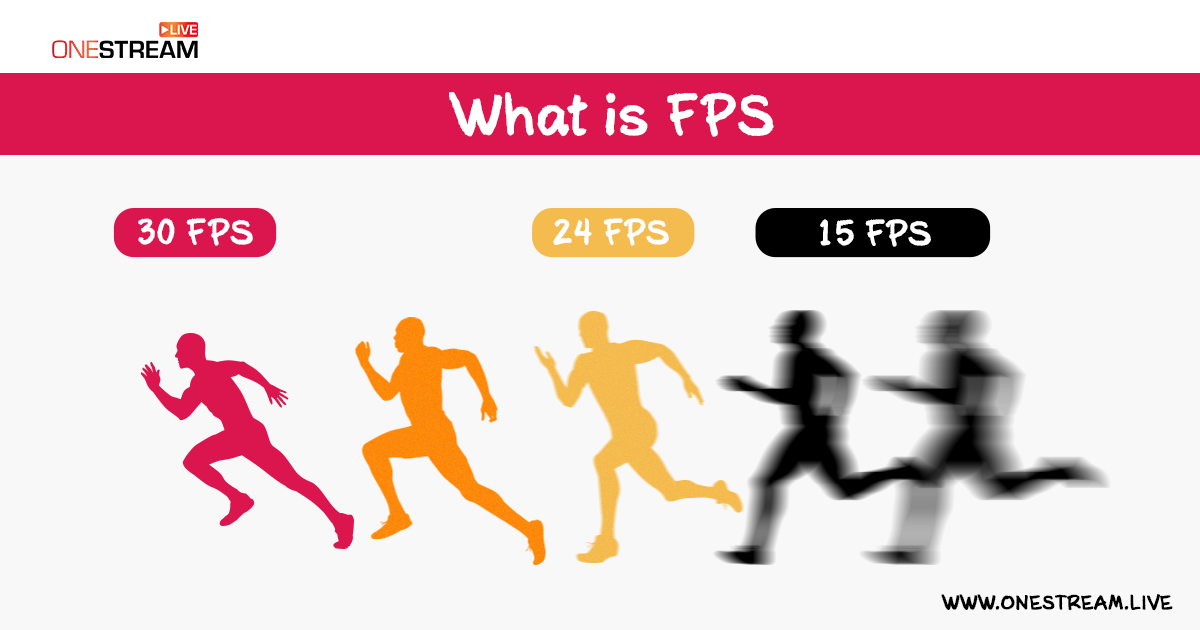
FPS, or frames per second, is the unit that measures how many individual frames a video shows in one second. In simple terms, it’s the speed at which pictures are displayed, and it defines the smoothness of motion in any video frame rate.
If your FPS video is set to 30 frames per second, your viewers see 30 still images each second, blended together to appear like continuous motion. A higher FPS speed, such as 60, makes movement look fluid and detailed, while a lower rate, like 24, gives that classic cinematic frame rate feel.
Why Does FPS Matter?
- Motion clarity: The higher the frames per second, the more lifelike and sharp the action looks.
- Content style: Films rely on 24 FPS for storytelling aesthetics, while 60 FPS is about fast-motion clarity in gaming or sports.
- Platform standards: Most streaming platforms, including YouTube video frame rate settings, support 30 and 60 FPS for smooth playback.
- Editing workflow: Choosing the wrong FPS in editing can create mismatched audio, dropped frames, or jittery playback.
Common FPS Values You’ll See
- 24 FPS: Standard for movies; creates a natural, film-like quality.
- 30 FPS: Considered the standard rate for TV, vlogs, and live streaming.
- 60 FPS: Popular in gaming, sports, and action-heavy content for ultra-smooth playback.
- 59.94 FPS: A fractional format used in broadcast workflows and legacy NTSC systems. It is common in professional camera frame rate outputs.
Different Frame Rates Explained: 24 FPS vs 30 FPS vs 60 FPS
The main difference between 24 FPS, 30 FPS, and 60 FPS is how smooth the motion looks and how much detail the video captures.
Lower rates, such as 24 FPS, create a cinematic style. 30 FPS is the standard frame rate for broadcast and live streaming, while 60 FPS delivers ultra-smooth playback for action-heavy content, like gaming or sports.
At a Glance: 24 FPS vs 30 FPS vs 60 FPS
| Frame Rate | Best For | Look & Feel |
|---|---|---|
| 24 FPS | Movies, vlogs, storytelling | Cinematic, artistic motion blur |
| 30 FPS | YouTube, live streaming, webinars, news | Smooth, standard broadcast quality |
| 60 FPS | Gaming, sports, fast action videos | Ultra-smooth, crisp, detailed |
i) 24 FPS: The Cinematic Frame Rate
- What it means: 24 frames per second is the traditional film standard.
- How it looks: Slight motion blur that mimics how the human eye perceives movement, giving the video a “movie” feel.
- When to use it:
- Films, documentaries, and storytelling content
- Travel videos or vlogs aiming for an artistic look
- Content where the mood is more important than motion clarity
Quick Answer: Use 24 FPS if you want a cinematic rate of frames that feels natural for storytelling.
ii) 30 FPS: The Standard for Broadcast and Streaming
- What it means: 30 frames per second is widely accepted as the standard for online and TV content.
- How it looks: Smoother than 24 FPS, with less blur in quick motion.
- When to use it:
- Live streaming on YouTube, Facebook, LinkedIn, or TikTok
- Webinars, talk shows, and interviews
- News broadcasts and sports highlights
Quick Answer: Choose 30 FPS for general-purpose video. It’s the safest option for most live streams, including YouTube uploads.
iii) 60 FPS: High Frame Rate for Fast Action
- What it means: 60 frames per second doubles the smoothness of 30 FPS, showing twice as many frames every second.
- How it looks: Crisp, fluid, and detailed. There is no choppiness, even in fast action.
- When to use it:
- Gaming streams on Twitch or YouTube
- Sports events and high-motion footage
- Slow-motion replays when editing video
Quick Answer: Go with 60 FPS if your content involves fast motion and you want the smoothest possible experience.
59.94 FPS vs 60 FPS: What’s the Difference?
59.94 FPS and 60 FPS look nearly identical to the human eye, but they differ in how cameras and broadcast systems process video. 59.94 is a fractional frame rate rooted in TV standards, while 60 is the rounded digital equivalent.
Why 59.94 FPS Exists
- Back in the NTSC broadcast era, engineers adjusted the FPS rate from exactly 60 to 59.94 FPS to make color TV signals compatible with black-and-white systems.
- This legacy standard still exists in many camera frame settings, capture cards, and encoder menus.
When to Use 59.94 FPS vs 60 FPS
- Choose 59.94 FPS if you’re working with broadcast workflows, capture cards, or cameras that output in NTSC-based formats. It avoids sync issues.
- Choose 60 FPS for streaming platforms like YouTube, Twitch, or Facebook, which all support rounded rates. For most creators, 60 FPS is simpler and works fine.
Do Viewers Notice the Difference?
No, your audience won’t see a visual difference between 59.94 FPS and 60 FPS. The distinction only matters for technical consistency between your video’s FPS rate, camera, and streaming encoder.
Choosing the Best FPS for Your Live Streams
The best frame rate for live streaming depends on your content type, motion level, and available upload speed. In most cases, 30 FPS is safe for webinars and general use, while 60 FPS is better for sports and gaming if your bandwidth can handle it.
Decision Framework: How to Pick the Right FPS
Ask yourself three quick questions before you set your frames per second:
1: What type of content am I streaming?
- Webinars, sermons, and vlogs → less motion → 30 FPS is safe.
- Gaming, esports, or sports → high motion → 60 FPS if your connection is strong.
2: What’s my available upload speed?
- Lower than 5 Mbps → stay at 720p30 for stability
- Between 5–8 Mbps → safe to run 1080p30
- Above 8 Mbps → 1080p60 is possible for smooth action
3: Which platform am I streaming to?
- YouTube: Supports 24, 30, 60
- Twitch: Standard at 30 and 60 FPS
- Facebook/LinkedIn/TikTok: Recommend 30 FPS
Did you know that OneStream Live automatically encodes streams to the permitted FPS for each platform, so you don’t have to worry about mismatches?

Recommended FPS by Content Type
| Content Type | Recommended FPS | Why |
|---|---|---|
| Webinars / Sermons | 30 FPS | Smooth enough for talking heads |
| Corporate Presentations | 30 FPS | Matches the standard fps for business video |
| Sports Live Streams | 60 FPS | Captures fast action without blur |
| Gaming Streams | 60 FPS | Reduces stutter and makes gameplay feel fluid |
| Film-Style Content | 24 FPS | Creates a cinematic frame rate feel |
OneStream Live Recommended Settings
The majority of social platforms, such as Facebook, Instagram, LinkedIn, and TikTok, recommend maintaining 30 FPS for live streaming. OneStream Live broadcasts the videos at 30 FPS as recommended by the social platforms to provide your audience with a high-quality viewing experience.
To avoid dropped frames and platform errors, OneStream Live suggests:
- Format: MP4
- Video codec: H.264 (AVC)
- Audio codec: AAC, 128 kbps
- FPS: Up to 60 (avoid going higher)
- Bitrate: 1500–6000 kbps for normal video; 5000–10000 kbps for 360° video
- Resolution: 1920×1080 (1080p) for YouTube, Twitch, Facebook, LinkedIn
If your uploaded video has a higher or lower FPS speed, OneStream Live automatically encodes it to the correct setting for your chosen platform, ensuring a smooth viewing experience. However, if you wish to live stream on a custom RTMP account that allows live streaming with a lower or higher FPS, that is also possible using OneStream Live.
Bitrate vs Frame Rate: How to Balance Quality and Stability
The best video quality comes from matching your rate of frames to the right bitrate. If your bitrate is too low for a high FPS video, motion will look pixelated or choppy; if it’s too high for your upload speed, your stream will buffer or drop frames.
Why Bitrate Matters for Frame Rate
- Frame rate controls how many images per second your viewers see.
- Bitrate controls how much data is allocated to those frames.
- The higher the FPS speed, the more bitrate you need to maintain sharpness and detail.
For example, 60 FPS doubles the number of frames compared to 30 FPS, so you need roughly double the bitrate to maintain the same visual quality.
Here’s a practical guide for streamers, aligned with OneStream Live’s video settings:
Recommended Bitrates by Resolution & FPS
| Resolution | 30 FPS (Standard FPS) | 60 FPS (High FPS) |
|---|---|---|
| 720p (HD) | 2500–4000 kbps | 3500–5000 kbps |
| 1080p (Full HD) | 4000–6000 kbps | 5000–8000 kbps |
| 1080p (via OneStream Live) | 4500–6000 kbps (safe range) | Up to 6000 kbps (OneStream max) |
| 360° / VR Video | 5000–8000 kbps | 8000–10000 kbps |
Final Takeaway
In conclusion, I hope I have been successful in explaining why your video’s rate of frames is the foundation of how your video looks and feels. The right choice depends on your content, audience expectations, and upload capacity.
For creators, consistency is key. Always match your frames per second to your shooting, editing, and streaming pipeline.
And if you’re broadcasting to multiple platforms, tools like OneStream Live simplify the process by encoding your videos to the correct FPS speed and bitrate automatically. The result: stable, high-quality live streams that reach your audience without glitches.
In 2025, audiences expect polished streams. Get the video frame rate right, and you’re halfway to delivering a professional experience.
Download OneStream Mobile App.


Frequently Asked Questions
It is the number of frames (images) displayed per second in a video, measured in FPS. A higher FPS video looks smoother, while a lower rate can create a more cinematic or stylized effect.
For most videos, 30 FPS is considered a good option because it balances smoothness with manageable file sizes and bandwidth. Use 60 FPS if your content involves fast motion like sports or gaming.
FPS stands for frames per second. It determines how smooth motion appears on screen: higher FPS reduces blur and judder, while lower FPS gives the video an artistic or cinematic look.
Low FPS usually happens because of insufficient upload speed, underpowered hardware (CPU/GPU), or incorrect encoder settings. Streaming at a high video FPS rate without enough bandwidth can cause drops.
You can increase FPS by lowering resolution (e.g., from 1080p to 720p), optimizing encoder settings, closing background apps, or improving your internet upload speed. For live streaming, ensure your bitrate supports the chosen FPS.
Neither is universally better, as it depends on content type. Higher rates (like 60 FPS) are better for fast action and gaming, while lower rates (like 24 FPS) give a cinematic look.
It is usually 30 FPS for general content and 60 FPS for sports, gaming, or fast-moving footage. Keep your bitrate high enough (15–45 Mbps for uploads) to maintain quality.
It’s 60 FPS, as it provides smooth motion and responsiveness. Competitive gamers often aim for even higher FPS locally, but for live streaming, 60 FPS is the standard.
OneStream Live is a cloud-based live streaming solution to create, schedule, and multistream professional-looking live streams across 45+ social media platforms and the web simultaneously. For content-related queries and feedback, write to us at [email protected]. You’re also welcome to Write for Us!