
If live streams are the modern town squares, then live stream chat is the crowd that brings them alive. But managing conversations scattered across Facebook, Instagram, YouTube, and Twitch? That’s the headache no streamer needs. Swapping tabs and losing track of comments, it all gets in the way of genuine connection, doesn’t it?
OneStream Live saw this pain point clearly and built Unified Live Chat to stitch the chatter into one neat, manageable place. It’s an innovative, powerful tool that, with its advanced chat options, puts you back in the driver’s seat of your audience’s attention.
Instead of juggling platforms, you’re holding a single, real-time, efficient, and personal conversation through a multistream chat solution. This means faster replies, better moderation, and streams that feel less like rehearsed broadcasts and more like natural conversations.
So, let’s dig into why Unified Live Chat is the backbone of successful live video streaming in 2025.
- Unified Chat lets you manage live chats across multiple platforms like Facebook, YouTube, and Twitch in one place.
- Live chats from different platforms are viewable and manageable in real time, enhancing engagement.
- Chat moderation tools make it easy to filter, pin, and reply to messages across platforms.
- Unified Live Chat scales across multiple concurrent events, ensuring no message is missed.
- Streamers can easily manage pre-recorded streaming and live video chat with Unified Chat for maximum flexibility.
What is Unified Stream Chat in OneStream Live?
When you’re live streaming, comments flood in from every corner. Without a unified system, it’s chaos.
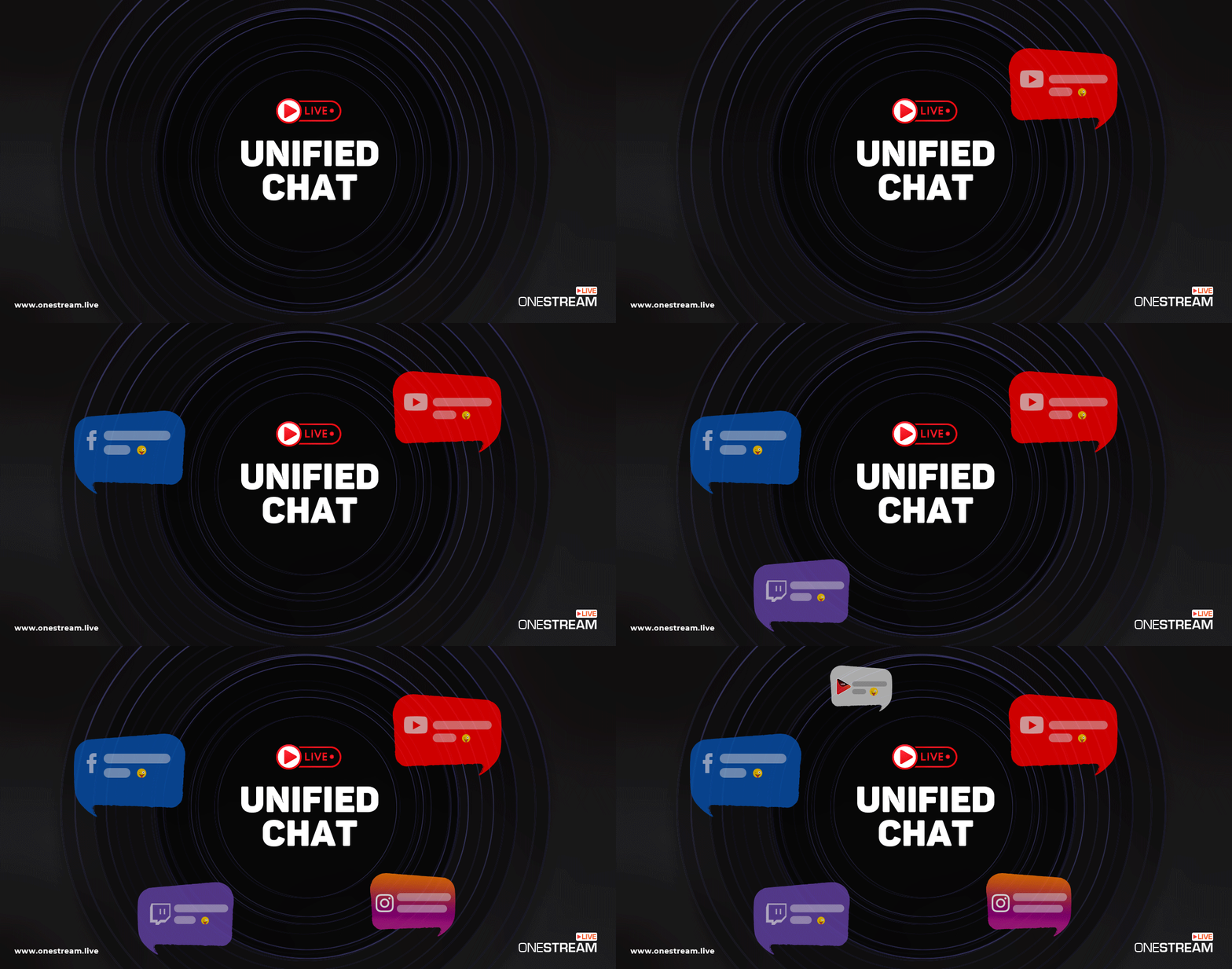
That’s where Unified Live Chat steps in, acting as a central hub that pulls all those threads together into one seamless interface. It lets you view and respond to messages from supported platforms like Facebook Pages, Instagram, YouTube, and Twitch, all without leaving your dashboard.
It’s built right into OneStream Live’s ecosystem, supporting both pre-recorded streams, real-time RTMP broadcasts and OneStream Live’s Studio.
Key features include:
- All-in-one interface: Manage livestream chats from multiple social platforms simultaneously, without the need for constant switching.
- Real-time engagement: Respond instantly to your audience’s comments and messages as they come in.
- Platform support: Currently available for Facebook Page, Instagram, YouTube, and Twitch, with plans to expand to more platforms soon.
- Customization: Filter chats, delete unwanted messages, and manage conversations based on the platform or user preferences.
Benefits of Using OneStream's Unified Live Stream Chat
As a live streamer, engaging with your audience is everything. But managing messages and comments from multiple platforms during a live chat free from interruptions can quickly become overwhelming.
That’s the problem Unified Live Chat by OneStream Live solves for live streamers. It makes your live streaming experience smoother, more efficient, and ultimately more engaging.
Here’s why this feature is so phenomenal for live streamers:
1. No More Platform-Hopping: All Chats in One Place
No more frantically jumping between Facebook Live comments, YouTube messages, and Twitch chat. With Unified Live Chat, you can chat live from all supported platforms, which include Facebook, YouTube, Instagram, and Twitch, in a single window.
Now, instead of managing multiple screens and tabs, you have everything organized in one easy-to-use space.
2. Easy Real-Time Engagement
Real-time interaction is very important for successful live video streaming. Unified Live Chat allows you to respond to comments, answer questions, and acknowledge your audience’s reactions without delay.
You can open Unified Chat from the sidebar to handle chats for simultaneous pre-recorded and RTMP events without losing context across streams. It keeps your viewers feeling heard and valued, which is essential for building a loyal community.
3. Faster Live Stream Chat Moderation
Keeping your chatrooms clean and organized is crucial for streamers, especially when engaging with viewers through live web chat. Unified Chat allows you to filter and manage livestream chats from various platforms at once.
You can select which platform’s chat you want to focus on, or respond to all at the same time. Plus, you can delete unwanted messages, ban trolls, and even set custom moderation rules to keep the chat welcoming and professional.
4. Lower Viewer Drop-Off
Did you know that up to 82% of customers leave a live chat if there’s no reply within five minutes, and faster live chat responses can lift satisfaction by 52%? Centralized handling means quicker acknowledgments, which sustains momentum and keeps the live chat feeling alive and attended to.
The quicker you respond, the more engaged your audience becomes. With Unified Live Chat, streamers can instantly track comments and messages across all platforms, ensuring no one gets left behind.
Research reveals that users expect a reply within about 90 seconds on chat, far faster than email. Responding to your audience promptly increases live streaming chat engagement, making your stream more interactive and personal. Viewers are more likely to stay engaged when they feel like they’re participating in a conversation.
5. Consistent Brand Voice
Responding from one console means every reply carries the same tone, phrasing, and link style across platforms, which builds recognition and trust over time in live chat streaming. Consistency matters because it takes roughly 5–7 impressions for someone to remember a brand, and consistency across channels is what makes those impressions “stick” for recall and preference.
As a matter of fact, 71% of consumers expect consistent experiences across channels, and unified replies help meet that expectation in real time during streams.
6. Free Up Resources for Content Creation
When you’re not bogged down by chat management, you can focus on creating better content. With Unified Chat, you can manage your live chats efficiently, freeing up time and brainpower for more creative endeavors.
The less you have to juggle, the more you can invest in your content. Maybe think about how to improve your stream quality, how to better interact with your viewers, or brainstorm new content ideas for your next live stream session!
Pro Tip: Learn more benefits of successful streaming in our in-depth Udemy course.
Tips for Engaging Through Live Stream Chats
Engaging with your audience via live chat streaming isn’t limited to only responding to comments. As a live streamer, you should also focus on creating an interactive, welcoming space where your viewers feel like they’re part of the experience.
Here are some practical tips to help you get the most out of the live chat box features in Unified Live Chat and keep your audience hooked:
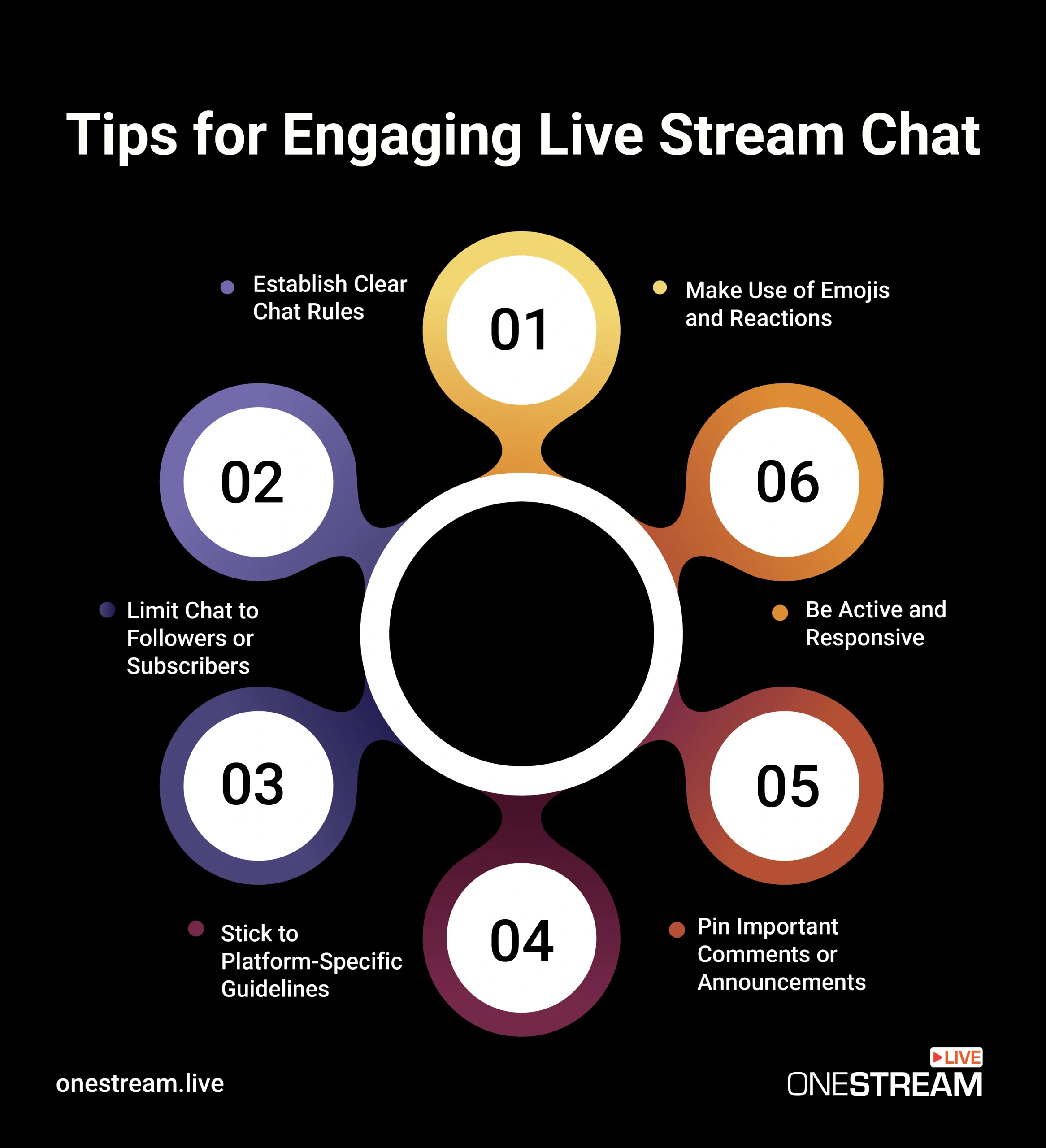
1. Establish Clear Chat Rules Before You Go Live
The first step in maintaining a friendly, productive chat environment is setting expectations. Make sure to establish rules for your live chat room before your stream begins.
For example, specify that:
- Spam, excessive capitalization, and irrelevant links are not allowed.
- Offensive language will result in a ban or warning.
- Comments should be respectful and engaging.
This ensures a positive experience for everyone, especially when you’re managing live chats from multiple platforms.
2. Be Active and Responsive
The key to building an engaged community is active participation. Stay present in the chat by acknowledging your viewers, responding to their questions, and joining the conversation.
Live stream chat is the perfect way to make your audience feel involved. And you can easily do that by thanking someone for a comment, answering questions, or reacting to feedback in real time.
3. Stick to Platform-Specific Guidelines
Each platform has its own set of chat moderation guidelines. And it’s important to follow them.
For instance:
- Facebook Live may have stricter policies on offensive language.
- Twitch tends to focus more on maintaining a gaming-related chat.
- YouTube Live could have specific guidelines for spam and links.
By adhering to these rules, you ensure that your stream stays compliant and that your live chat system operates smoothly.
4. Limit Chat to Followers or Subscribers
Limiting your livestream chat to only followers or subscribers is a simple yet effective way to control who interacts in your chat. This also helps reduce the chances of bots or trolls infiltrating your chat, creating a safer and more meaningful space for your audience.
On YouTube, consider using subscriber-only chats for more intimate engagement.
5. Make Use of Emojis and Reactions
Emojis are a simple yet effective way to express emotion and keep the chat fun. Use emojis to react to comments, share excitement, or acknowledge viewers’ feedback.
This can help make the chat more lively and engaging, especially when you’re managing comments across multiple platforms.
6. Pin Important Comments or Announcements
On some platforms, like YouTube Live, you can pin important comments or announcements to the top of the chat. Use this feature to highlight your live chat room rules, upcoming events, or special offers. It keeps your audience informed and helps maintain order within the chat.
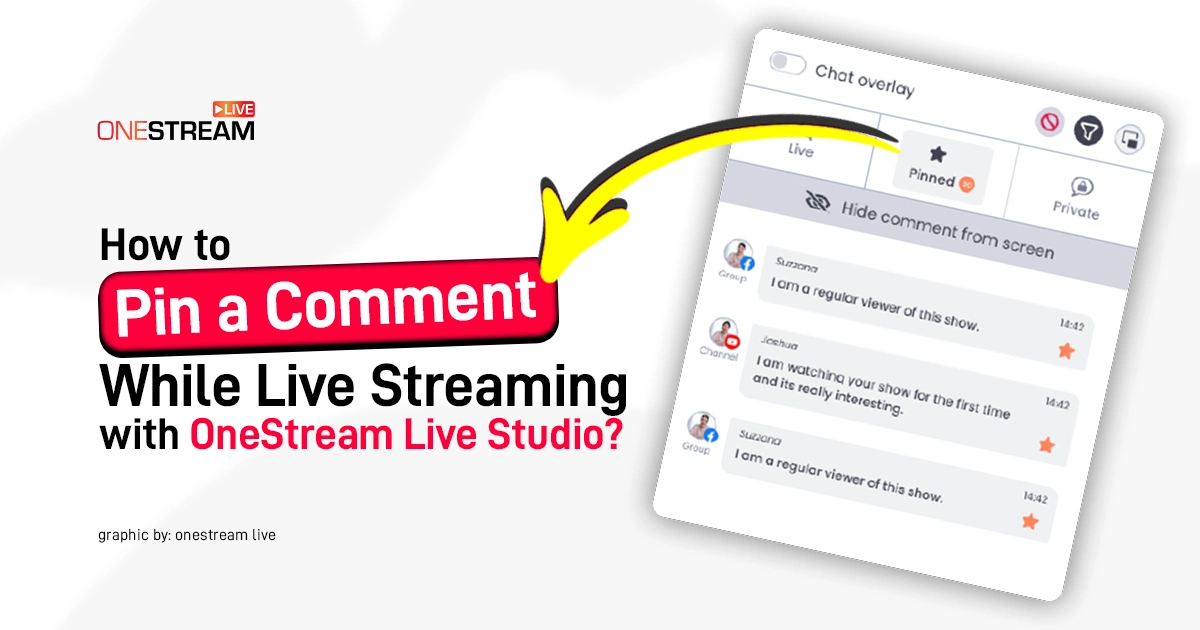
Pro Tip: Did you know you can pin comments in OneStream Live Studio’s Live Chat natively?
- To pin a comment during your live stream, click the Chat button in OneStream Studio, hover over the comment, and click the Star to pin it.
- Pinned comments will appear in the Pinned section for easy access.
- To remove a pinned comment, simply hover over it and click the star again.
- You can also set a comment as a banner by clicking Show; to remove it, click Hide.
- Note: Pinning comments is only available for Stream Chat on Facebook Page, Instagram, YouTube, and Twitch.
Unified Live Chat by OneStream Live is a powerful tool for any live streamer, as it streamlines their chat management and boosts audience engagement. Plus, with the ability to manage chats from pre-recorded streams and live streaming chat, you’ll always stay connected with your community, no matter how many events you’re running simultaneously.
It provides a solution to help your viewers feel heard and ensures professional, engaging broadcasts.

FAQs about Unified Live Stream Chat
To show chat on stream, you’ll need to use a chat overlay or stream chat app. Most streaming platforms like YouTube, Facebook, and Twitch offer built-in chat integration for your streams.
You can add a browser source in OBS to display chat on the screen. OneStream Live also lets you manage and display chat from multiple platforms simultaneously, giving you a consolidated view of all incoming messages.
To see the chat on your YouTube live stream, simply open the YouTube Live Dashboard while streaming. The live chat will appear on the right side of the screen for real-time interaction.
Alternatively, you can manage live streaming chats through OneStream Live’s Unified Chat, where YouTube chat will be aggregated with comments from other platforms in one interface, making engagement much smoother.
To show stream chat on OBS, you need to use a stream chat overlay. You can either use a browser source to display your chat from platforms like YouTube or Twitch, or use stream chat apps like Streamlabs or OBS Chat Plugin.
Copy the URL of your chat window, add it as a browser source in OBS, and your live chat will appear on the screen during your live stream.
If you’re using OneStream Live to multistream, the Unified Live Chat feature allows you to see all incoming messages from Twitch and other platforms in one window, so you can interact with viewers without needing to switch tabs or platforms.
You can even display your chat as a banner or pin a comment when using OneStream Live’s Studio for streaming.
If your stream can’t hear game chat, check your audio settings in both your streaming software and game. In OBS or any other streaming software, ensure that your game audio and chat audio are captured on separate audio tracks.
If you’re using OBS or Streamlabs, you may need to adjust your audio mixer settings to include both game audio and chat audio from your headset or microphone. For live streaming chat in your game, ensure that both game sound and chat audio are enabled in your settings.
Yes, OneStream Live’s Unified Live Chat can scale across multiple concurrent events. You can manage chat streaming from all your live streams, including pre-recorded and RTMP streams, in one interface, regardless of how many events are happening at once.
The multi chat platform feature ensures that you can respond to comments, messages, and reactions across all active events simultaneously without needing to switch between different windows or platforms.
OneStream Live is a cloud-based live streaming solution to create, schedule, and multistream professional-looking live streams across 45+ social media platforms and the web simultaneously. For content-related queries and feedback, write to us at [email protected]. You’re also welcome to Write for Us!